
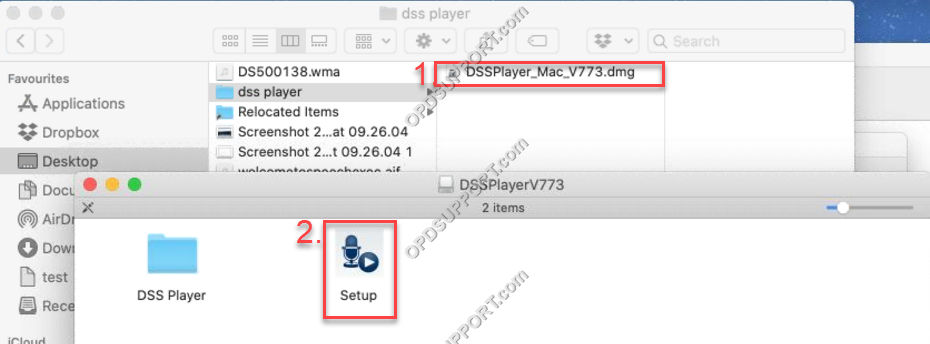
- Once the file has downloaded, open the “DSS Player for Mac v7.*.* Full” folder, open the .DMG file.
- Open the Setup file to start the installation wizard.
-
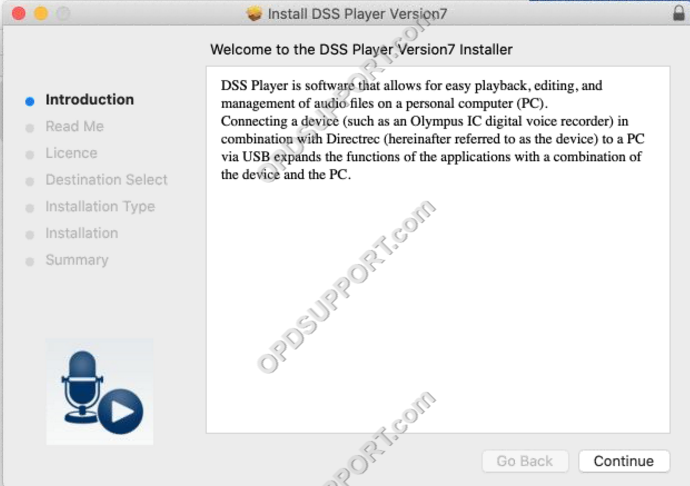
You will next be presented with a brief introduction – Click Continue.
-
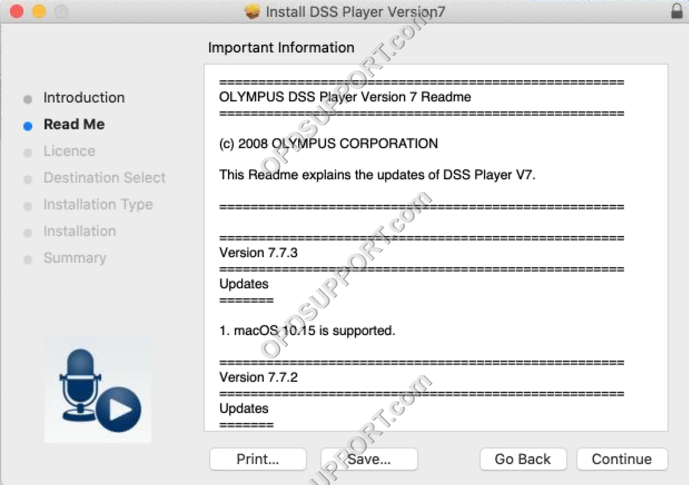
This will then show important information regarding the version history – Click continue.
-
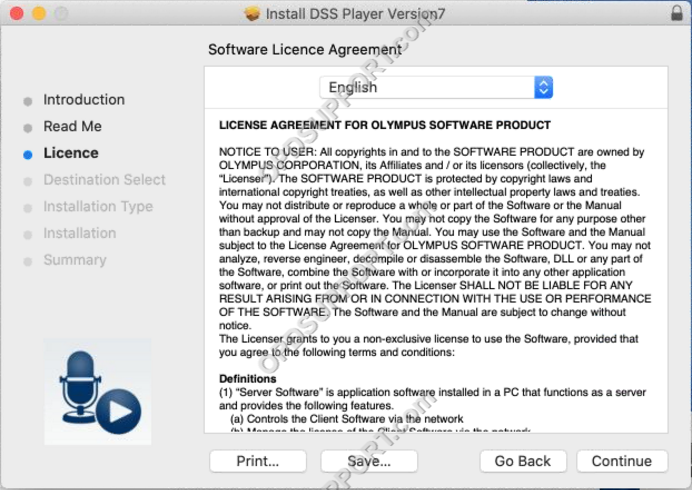
Next, read and agree to the Software License Agreement, click Continue.
-
You will be prompted to press the Disagree or Agree to the software licence agreement.
NOTE: If you press Disagree the installation will stop.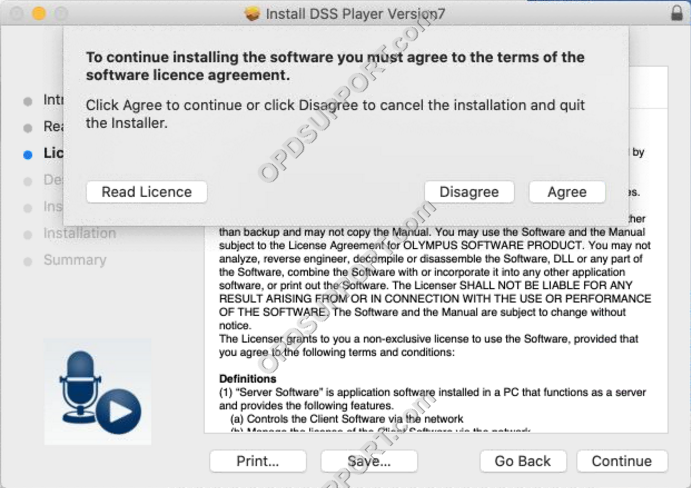
-
Here you can change where the program files for DSS Player for Mac will be stored. Click Install when ready.
NOTE: Default settings are recommended.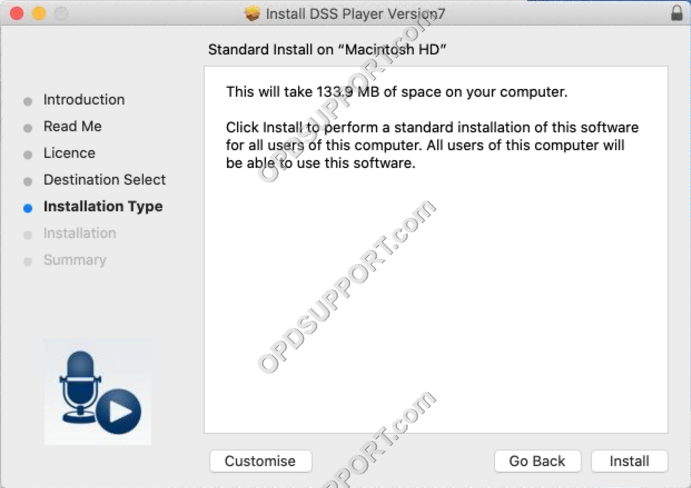
-
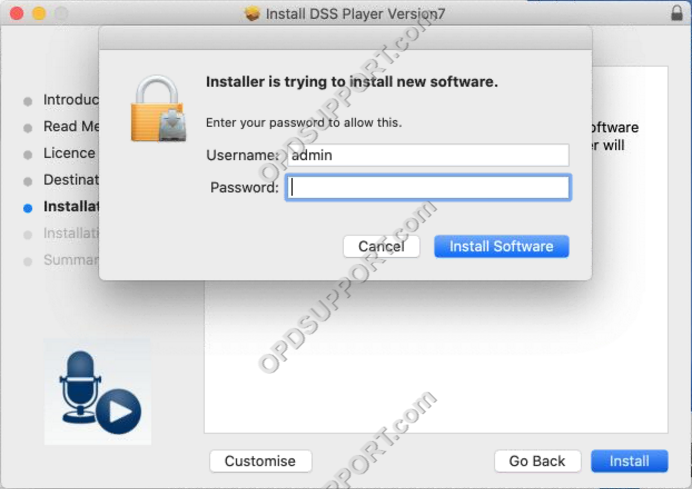
You will be prompted to enter your password, enter this then click Install Software.
-
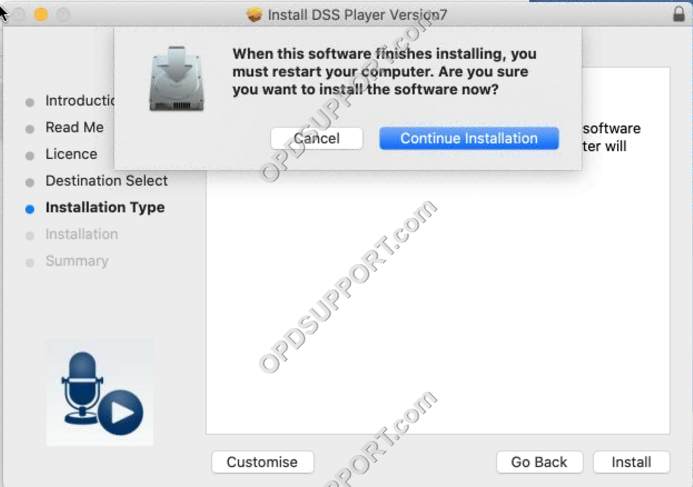
Click Continue Installation.
-
You will be prompted to restart your Mac.
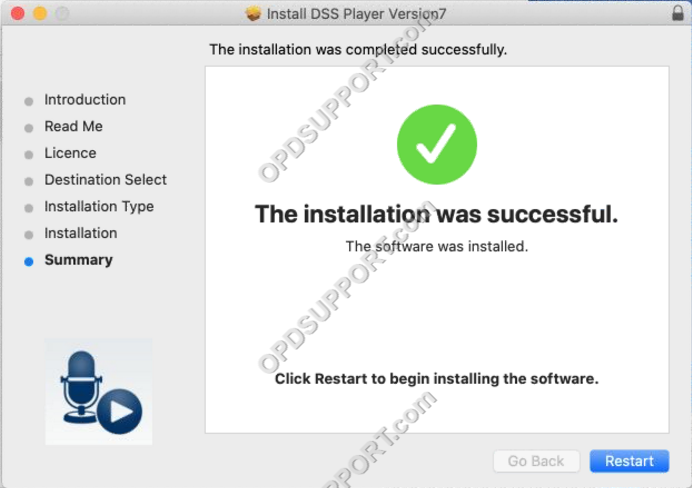
-
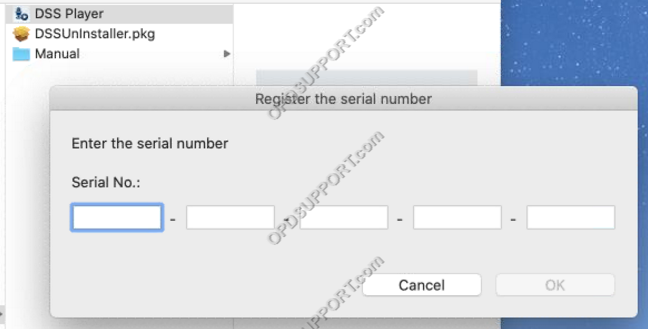
Once your Mac has rebooted, go to Applications and look for the DSS Player folder then launch the Olympus DSS Player software. Before opening, you will be prompted to enter your license key / serial number in order to begin using the software. You will find the license key at the bottom of the green paper license slip supplied with the product. Enter this and click OK.
-
If you are running macOS High Sierra or later. You will need to check the Mac Security to allow Olympus to load the device drivers, please follow the guide on How to enable hardware control.