
If you've recently installed, or re-installed OM System's (previously called Olympus) ODMS R7 or R8 Transcription Module, and there is no sound when playing a dictation, there are several options to try which should only take a few minutes.
Check your headphones are selected as the audio output on your Windows PC
-
Go to Start > Settings
-
Select Sound, or go to System > Sound
-
Under Output, ensure the correct speakers or headphones are selected.
If your speaker/headphones aren't showing as an option, ensure they are plugged into the PC. For USB-devices, try another port on the computer.
Select the audio output in the Transcription Module
-
Open the Transcription Module on your PC
-
Select the dictation you want to play In the icon menu bar at the top (underneath File, Folder, Edit etc.)
-
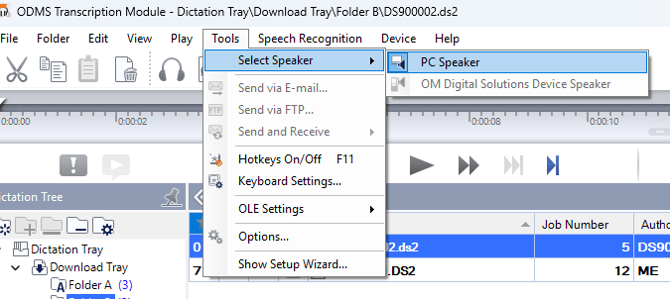
Go to Tools > Select Speaker > Click 'PC Speaker'
-
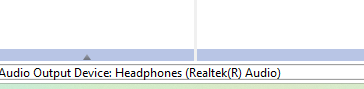
Look in the bottom left hand corner where you'll see the audio output cycle between the available options
-
Stop when your preferred audio device is shown
You will likely ONLY see the PC Speaker as an option, however this cycles through the available sound devices connected to your PC. The bottom left hand corner will show you what has been selected.