---
title: Philips SpeechLive - How to setup a foot control (Philips and non-Philips)
description: Philips SpeechLive - How to setup a foot control (Philips and non-Philips)
---
[Skip to content](https://help.speakit.co.uk/philips/speechlive/how-to-set-up-foot-pedal#main-content)
[Submit a ticket](https://help.speakit.co.uk/kb-tickets/new?hsLang=en-gb)
[](https://www.speakit.co.uk/)
- [Knowledge base home](https://help.speakit.co.uk/)
- [Shop](https://www.speakit.co.uk/)
- [Sign out](https://147220429.hs-sites-eu1.com/_hcms/mem/logout)
Open main navigation
Close main navigation
- [Knowledge base home](https://help.speakit.co.uk/)
- [Shop](https://www.speakit.co.uk/)
- [Sign out](https://147220429.hs-sites-eu1.com/_hcms/mem/logout)
- [Submit a ticket](https://help.speakit.co.uk/kb-tickets/new)
- [Download QuickSupport](https://www.898.tv/speak-it-support)
[Download QuickSupport](https://www.898.tv/speak-it-support)
How can we help you?
- There are no suggestions because the search field is empty.
1. [Speak-IT Knowledge Base](https://help.speakit.co.uk/?hsLang=en-gb)
2. [Philips](https://help.speakit.co.uk/philips?hsLang=en-gb)
3. [SpeechLive](https://help.speakit.co.uk/philips?hsLang=en-gb#speechlive)
# Philips SpeechLive - How to setup a foot control (Philips and non-Philips)
This process can be followed for both Philips and non-Philips foot pedals to ensure your device continues to connect to SpeechLive without needing to configure upon each launch.
SpeechLive is compatible with the below model foot controls:
1. Philips [ACC2310](https://www.speakit.co.uk/products/philips-acc2310-foot-control) / [ACC2320](https://www.speakit.co.uk/products/philips-acc2320-foot-control) / [ACC2330](https://www.speakit.co.uk/products/philips-acc2330-foot-control)
2. Olympus [RS31(H)](https://www.speakit.co.uk/products/olympus-rs31h-usb-foot-control) / [RS28(H)](https://www.speakit.co.uk/products/olympus-rs28h-usb-foot-pedal)
3. [Infinity USB 3](https://www.speakit.co.uk/products/infinity-usb-foot-pedal-in-usb3)
#### Video guides
| **PC video guide** | **Mac video guide** |
| --- | --- |
| | |
##### Install the Chrome Web Extension
1. Using a Chrome browser, visit the Philips Device Connector extension page.
2. A pop-up window will appear, simply confirm the installation by clicking 'Add extension'.
##### Install the Philips Device Connector
1. Download the latest Philips Device Connector native host application.
2. Run the installer file on the computer you wish to use the pedal.
3. Finish setup.
4. Restart your chrome browser and retry the initial foot pedal setup in SpeechLive.
#### Checking your browser is up to date
1. If you have carried out the above steps and are still unable to use your foot pedal, we recommend checking that your Chrome browser is up to date.
2. Open Chrome.
3. Go to the top right-hand corner and click the three vertical dots.
4. Click 'Settings'.
5. Click the 'About Chrome' tab, and you will see whether it is up to date and follow instructions for updating it if not.
#### Configuring your foot pedal buttons in SpeechLive
1. Log in to [www.speechlive.com](http://www.speechlive.com/) using a Chrome browser.
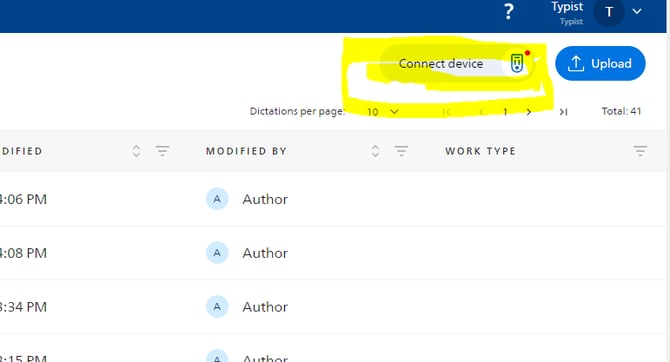
2. On the user home screen, click the 'Connect device' button (there will be a red dot next to the icon if no devices are detected).
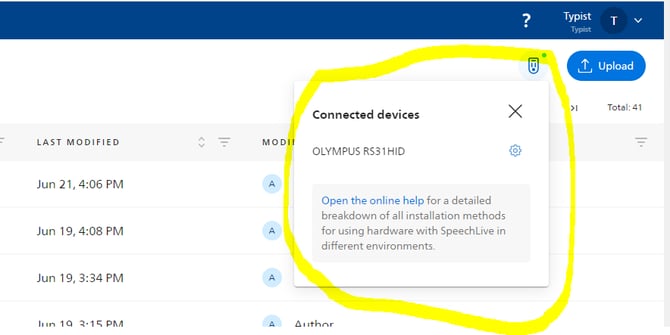
3. Plug the Foot Pedal in to any free USB port on your computer. The light will go green if the pedal has been recognised.
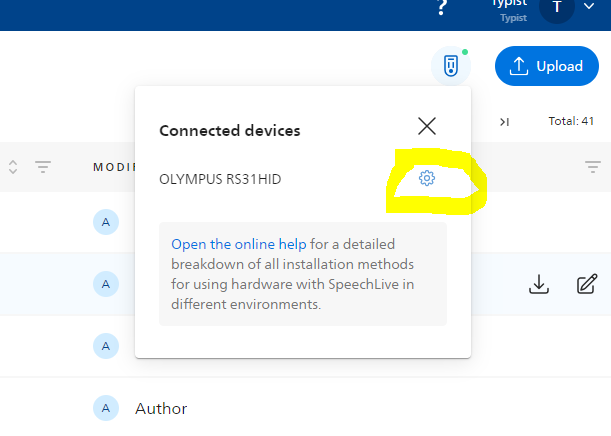
4. If green, click the Settings cog to continue with configuration.
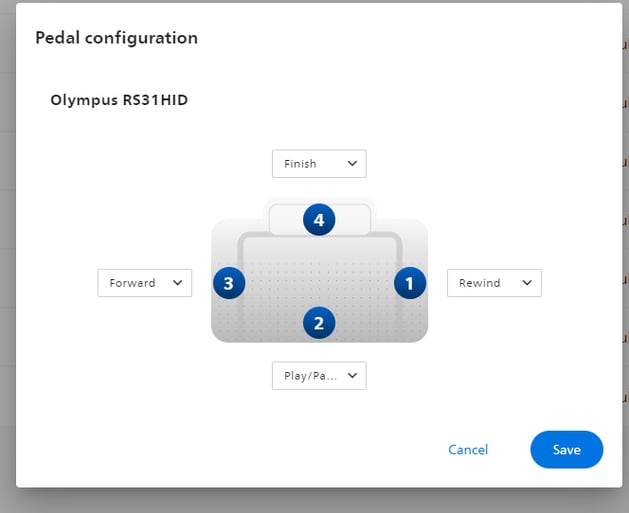
To allow your supported foot control to work with Philips SpeechLive, we recommend that the Philips Device Connector is installed as per the instructions above.
- [Hytera](https://help.speakit.co.uk/hytera?hsLang=en-gb#main-content)
- [Software](https://help.speakit.co.uk/hytera?hsLang=en-gb#software)
- [Nuance Dragon](https://help.speakit.co.uk/nuance-dragon?hsLang=en-gb#main-content)
- [Dragon Anywhere Mobile](https://help.speakit.co.uk/nuance-dragon?hsLang=en-gb#dragon-anywhere-mobile)
- [Contact](https://help.speakit.co.uk/nuance-dragon?hsLang=en-gb#contact)
- [Dragon Professional Anywhere](https://help.speakit.co.uk/nuance-dragon?hsLang=en-gb#dragon-professional-anywhere)
- [Pro V16](https://help.speakit.co.uk/nuance-dragon?hsLang=en-gb#pro-v16)
- [PowerMic Mobile](https://help.speakit.co.uk/nuance-dragon?hsLang=en-gb#powermic-mobile)
- [Dragon Medical One](https://help.speakit.co.uk/nuance-dragon?hsLang=en-gb#dragon-medical-one)
- [Dragon Legal Anywhere](https://help.speakit.co.uk/nuance-dragon?hsLang=en-gb#dragon-legal-anywhere)
- [Support](https://help.speakit.co.uk/nuance-dragon?hsLang=en-gb#support)
- [OM SYSTEM](https://help.speakit.co.uk/om-system?hsLang=en-gb#main-content)
- [Support](https://help.speakit.co.uk/om-system?hsLang=en-gb#support)
- [RecMic](https://help.speakit.co.uk/om-system?hsLang=en-gb#recmic)
- [DS-9500](https://help.speakit.co.uk/om-system?hsLang=en-gb#ds-9500)
- [DSS Player for Mac](https://help.speakit.co.uk/om-system?hsLang=en-gb#dss-player-for-mac)
- [ODMS R7 R8](https://help.speakit.co.uk/om-system?hsLang=en-gb#odms-r7-r8)
- [Foot pedal](https://help.speakit.co.uk/om-system?hsLang=en-gb#foot-pedal)
- [DSS Player Standard](https://help.speakit.co.uk/om-system?hsLang=en-gb#dss-player-standard)
- [DS-9500 DS-9000](https://help.speakit.co.uk/om-system?hsLang=en-gb#ds-9500-ds-9000)
- [ODMS Cloud](https://help.speakit.co.uk/om-system?hsLang=en-gb#odms-cloud)
- [Philips](https://help.speakit.co.uk/philips?hsLang=en-gb#main-content)
- [SpeechLive](https://help.speakit.co.uk/philips?hsLang=en-gb#speechlive)
- [SpeechExec](https://help.speakit.co.uk/philips?hsLang=en-gb#speechexec)
- [Foot pedal](https://help.speakit.co.uk/philips?hsLang=en-gb#foot-pedal)
- [SpeechMike](https://help.speakit.co.uk/philips?hsLang=en-gb#speechmike)
- [SpeechControl](https://help.speakit.co.uk/philips?hsLang=en-gb#speechcontrol)
- [Digital Pocket Memo](https://help.speakit.co.uk/philips?hsLang=en-gb#digital-pocket-memo)
- [Contact](https://help.speakit.co.uk/philips?hsLang=en-gb#contact)
- [Speak-IT](https://help.speakit.co.uk/speak-it?hsLang=en-gb#main-content)
- [Hardware](https://help.speakit.co.uk/speak-it?hsLang=en-gb#hardware)
- [Tickets](https://help.speakit.co.uk/speak-it?hsLang=en-gb#tickets)
- [Orders](https://help.speakit.co.uk/speak-it?hsLang=en-gb#orders)
- [Guardian](https://help.speakit.co.uk/guardian?hsLang=en-gb#main-content)
- [G1 Body Camera](https://help.speakit.co.uk/guardian?hsLang=en-gb#g1-body-camera)
[](https://www.speakit.co.uk/)
[mailto:support@speakit.co.uk](mailto:support@speakit.co.uk)
Copyright © 2026, Speak-IT Solutions Ltd